Forum Replies Created
list of topics you have created till now.
-
-
Hi,
That layout comes with our Demo-01 content, so you’ll need to import the demo first and then assign the page as your homepage:
1. Go to Appearance > Install Theme Plugins and install/activate the recommended plugins one by one.
2. Go to Appearance > Import Theme Demos and import Demo-01.
3. Go to Settings > Reading, set “Your homepage displays” to “A static page”, and select the home page you want (Home Podcast Playlist 1 Column) as your Homepage.
4. Save Changes.
You can find the details here:
https://docs.pixelwars.org/podkest.php#sample-data
https://docs.pixelwars.org/podkest.php#homepageLet me know if you run into any issues.
Best regards,
Pixelwars SupportHi,
Thanks for reaching out. I’m looking into this and will get back to you with a detailed answer later today.
Best regards,
Pixelwars SupportHi,
Thanks for purchasing Podkest!
I’ll get back to you later today with the exact steps for setting that layout as your homepage.
Best regards,
Pixelwars SupportHi Nina,
Great to hear it’s working well now. If anything else comes up, feel free to open a new topic anytime.
If you’re happy with the theme and the support, we’d really appreciate a rating on ThemeForest. You can leave one from your Downloads page: https://themeforest.net/downloads
Best regards,
Pixelwars SupportHi Nina,
That behavior comes from the theme’s “Smooth Scroll” option, which can feel sluggish on some devices and browsers.
You can turn it off under “Appearance > Customize > General > Layout > Smooth Scroll” by setting it to “No”.
I’ve already set it to “No” for you — please clear your browser cache and check again. Let me know if the issue persists.
Best regards,
Pixelwars SupportHi,
Thanks for reaching out. The vertical “jump” you see is caused by a scale/translate transform that the Prime Slider Coral skin applies to the arrow icon on hover. It is independent from the hover color effect, so it can be disabled on its own.
Please go to Appearance → Customize → Additional CSS and add:
/*
Disable hover transform on the project slider arrows (keeps hover colors)
*/
.elementor-element-0172485 .bdt-prime-slider-previous:hover svg,
.elementor-element-0172485 .bdt-prime-slider-next:hover svg {
    transform: none !important;
}
If you would rather apply it to every slider that uses this skin instead of only this one section, use this version instead:
.bdt-prime-slider-skin-coral .bdt-prime-slider-previous:hover svg,
.bdt-prime-slider-skin-coral .bdt-prime-slider-next:hover svg {
    transform: none !important;
}
After saving, please clear any caching plugin / CDN cache and hard-refresh the page. The background and icon color change on hover will continue to work exactly as before; only the movement is removed.
Best regards,
Pixelwars SupportHi,
Thank you for the detailed explanation and reference link.
I’ll review the slider navigation arrow styles and get back to you later today with the exact solution to disable only the transform animation while preserving the existing hover color effect.
Best regards,
Pixelwars SupportHappy to hear it — glad that’s sorted!
If you have a moment, you can rate Archy from your ThemeForest Downloads page ( https://themeforest.net/downloads ) — there’s a star rating next to each item. It would mean a lot to us.
And if anything else comes up, just open a new topic here and we’ll take a look.
Best regards,
Pixelwars SupportHi, thanks for the detailed report.
The “Logo Padding” field (Customizer > Site Identity) could be saved empty, and the theme then ran a calculation on that empty value, which is fatal error on PHP 8+. The custom logo itself wasn’t the cause — that field just happens to sit in the same panel.
It’s fixed in Archy v2.1.7, available on ThemeForest now. Step-by-step update instructions are here: https://www.pixelwars.org/forums/topic/how-to-update-your-theme/
You don’t need to reset anything or re-upload your logo — your settings are preserved.
Sorry for the trouble, and thanks again — your report made this quick to fix.
Best regards,
Pixelwars SupportHello,
Thank you for the detailed report.
We have confirmed the issue, and the fix is already prepared. We will publish a new Archy theme update today.
After updating the theme to the latest version, you should be able to use your custom logo normally.
Thank you for your patience and for bringing this issue to our attention.
Hi,
Glad to hear you got it sorted, and thanks for letting us know!
If it comes back or you run into anything else with Mechano, just open a new topic. We’re happy to help.
Best regards,
Pixelwars SupportHello,
Yes, Efor is compatible with Tutor LMS 4.0.
I have just released a new update for the Efor theme. Please update the theme to the latest version first.
After updating the theme, go to **Appearance > Install/Update Theme Plugins** and update the **Tutor LMS** plugin from there.
Best regards
Hi Jo,
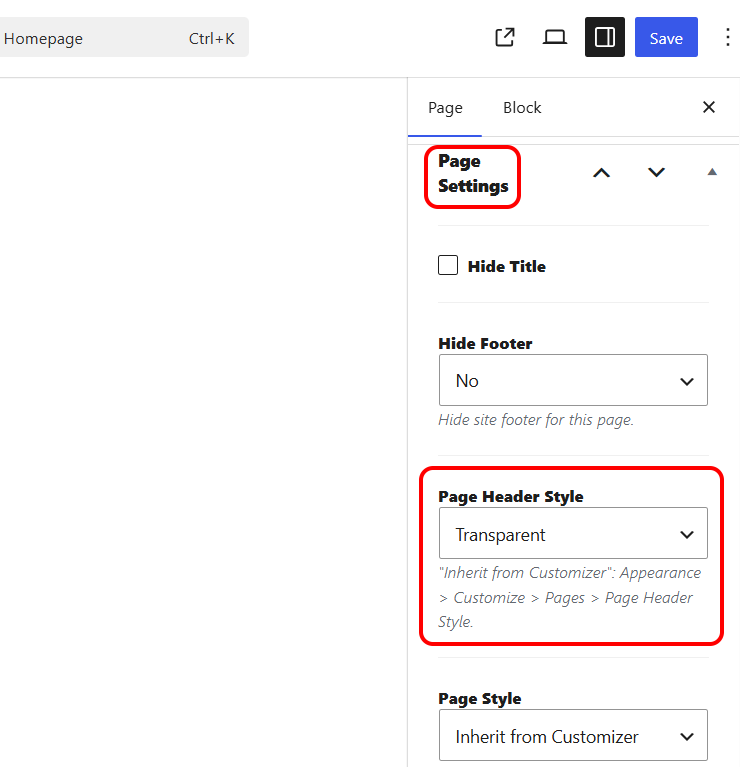
I’ve now logged in to your WordPress admin area, identified the issue, and applied the corrected version of the Energi theme directly to your site.
The transparent header option is now available and the header has been restored on your website. https://i.ibb.co/X9D4PMb/Page-Header-Style.png
Please check the site from your side and let me know if everything is now displaying correctly. If you still see the previous version, please clear your browser cache and refresh the page.
We will also publish an official theme update tomorrow so that this fix is included in the latest Energi release.
Apologies again for the delay, and thank you for your patience.
Best,
MehmetHi,
Thank you for reporting this issue!
We’ve identified and fixed the double scrollbar issue. A new theme update is now available. To apply the fix, please update Archy to the latest version by following our guide:
How to update your theme:
https://www.pixelwars.org/forums/topic/how-to-update-your-theme/After updating, don’t forget to clear your browser cache and any caching plugin you may be using.
Full changelog
Documentation:
https://docs.pixelwars.org/archy.phpPlease let us know if everything works as expected.
Best regards
MehmetHi,
We noticed that your hosting is provided by GoDaddy (GoDaddy menu is visible in your WP admin panel).
Please update your PHP version to PHP 8.3 from your GoDaddy hosting panel by following these steps:
– Log in to your GoDaddy account
– Go to My Products → Hosting → Manage
– Open Settings or Server / PHP Settings
– Change the PHP version to 8.3
– Save the changesAfter updating PHP:
– Clear your website cache (if any)
– Refresh the Shop page
– Check again if the sidebar and product filters work correctlyOnce this is done, please let us know the result and we’ll continue checking the shop sidebar and filter configuration if needed.
Kind regards,
MehmetHi,
We have just released a new update for the Efor theme which includes the latest version of the Tutor LMS Pro plugin.
1. First, update your theme to the latest version following this guide:
https://www.pixelwars.org/forums/topic/how-to-update-your-theme/2. Then go to “Appearance → Install Theme Plugins” to update Tutor LMS Pro as well.
Important:
If you encounter any issues or failed updates while updating bundled plugins from the “Install Theme Plugins” page:– Go to the “Plugins” page, deactivate the problematic plugin, and delete it.
– Then return to “Appearance → Install Theme Plugins” and install it again.This process will install the latest version of the plugin and will not affect any of your existing content or data stored in the database.
After completing all updates, please check your website again.
You can view the full changelog here: https://www.pixelwars.org/themes/efor/
For full documentation and detailed setup instructions, visit:
https://docs.pixelwars.org/efor.phpBest regards,
MehmetHi,
Thanks for your feedback. We’ve improved the “Automatic Excerpt “feature in the latest theme update and added more flexible control for post formats.
You can now exclude the “Video” post format from automatic excerpts while keeping excerpts enabled for other formats.
You can update the theme to the latest version by following one of the methods explained here:
https://www.pixelwars.org/forums/topic/how-to-update-your-theme/
After updating the theme, you can test this on your site by navigating to:
“Theme Options > Blog > Automatic Excerpt” and selecting “For all post formats except Video.”Additionally, since you have shared login credentials for us to review your site, we strongly recommend changing your password to a new, strong one for security reasons.
Please let us know if everything works as expected.
Best regards,
MehmetHi,
We have logged into your WordPress site and completed the setup for you.
Here is what we did:
– Created a page named “News”.
– Assigned this page as the Posts page under Settings → Reading.
– Added the News page to the main menu.As a result, the blog (News) page is now visible and working correctly on the front-end.
Regarding the font settings:
All site fonts can be changed from the Customizer, under the following sections:
– Appearance → Customize → Typography.
– Appearance → Customize → Site Identity.
– Appearance → Customize → Header.Each font setting includes a small description under its label indicating the default font used by the theme. For example: “Default: Jost”.
This allows you to easily restore or match the original demo typography if needed.
So if you would like to switch back to the demo fonts or customize them further, you can do so directly from these Customizer sections.
Please check your site now and confirm that everything looks fine on your side.
If you notice anything else or need further adjustments, feel free to let us know.
Best regards,
MehmetHi Kosta,
Thank you for your patience.
We’ve shared the remaining styling issues with our design team, and one of our designers will personally review your website and make the necessary adjustments to ensure the pages match the Foodsy demo design.
We’ll keep you updated once the review and fixes are completed.
Thanks again for your understanding.
Best regards,
MehmetHi,
We would like to inform you that the update for the Nolo theme has now been released.
Please update the theme by following the instructions in our guide below:
https://www.pixelwars.org/forums/topic/how-to-update-your-theme/You can also find changelog here:
https://themes.pixelwars.org/nolo/wp-content/themes/nolo/changelog.txtAfter updating the theme, please:
– Update Pixelwars Core plugin from Appearance > Install Theme Plugins.
– Clear any cache (plugin / server / CDN).This update resolves the issues related to the demo import and missing content.
If you experience any problems after updating, please let us know and we’ll be happy to assist further.
Best regards,
MehmetHello,
Thank you for your patience.
We have tested the Nolo theme in detail and successfully identified the cause of the issue you reported regarding the missing sections and demo content.
The problem has been fixed on our side and we are currently preparing a theme update, which will be released within one week.
Once the update is published, please make sure that:
– You have theme update notifications enabled on your ThemeForest → Downloads page.
– You update the theme to the latest version as soon as it becomes available.After updating the theme, the demo import and missing content issues will be resolved.
Thank you for your understanding and for reporting this to us.
If you have any further questions in the meantime, feel free to contact us.Best regards,
MehmetHi,
Just to clarify:
– Our Empathy demo site is currently running on PHP 8.3.
– The theme itself does not restrict or lock any PHP version.If the site breaks when switching PHP versions, this is most commonly caused by a third-party plugin.
To identify the source of the issue, please follow these steps:
1. Temporarily deactivate all plugins.
2. Switch your PHP version step by step to 8.1 → 8.2 → 8.3, checking the site after each change.
3. If the site works correctly on PHP 8.3 with all plugins disabled, start re-activating plugins one by one.
4. Once you identify which plugin causes the issue, please let us know the result.
We’ll be happy to review it further once you have this information.
Kind regards,
MehmetHi,
Thank you for sharing the admin login details.
We’ve logged into your WordPress admin panel and manually re-imported the Foodsy demo content for you.
All demo data, layouts, fonts, and colors have now been set up to match the original Foodsy demo as closely as possible.
Please take a moment to check your website now and confirm that everything looks correct on your side.
If you notice anything still missing or different, feel free to let us know. We’ll be happy to assist further.
Looking forward to your feedback.
Best regards,
MehmetDear Lindsay,
We have released a new update for the theme and updated your website to the latest version. The issue with the second scrollbar has now been resolved.
Before checking your website, please clear your site and browser cache to make sure the latest changes are applied. After that, could you please review the site on both desktop and mobile devices and let us know if everything is working correctly on your side?
Thank you for your patience and cooperation.
Kind regards,
MehmetDear Lindsay,
Thank you for your patience.
We have identified the cause of the issue, and we will release a new update for this theme within one week to resolve the extra scrollbar problem. Once the update is published, we will also notify you here.
Thank you very much for your understanding and continued support.
Kind regards,
MehmetHi,
I’ve checked your website and found the cause of the warnings.
During the demo import, the page assigned to display the blog posts was not imported correctly, which caused WordPress to show notices on the front-end.I’ve fixed this for you:
– Created a new page named “News”,
– Assigned it as the Posts page under Settings → Reading,
– Added the page to your main navigation menu.Your site is now working cleanly and no warnings are displayed anymore.
Please check your website on your side and let me know if everything looks good.
Best regards,
MehmetWe’ve just released a new update for the ikonik.
What’s new in this version?
– Improved cover image quality: The “Home Cover Image” now uses a higher-resolution image for a sharper and cleaner appearance.
– Enhanced “Timeline Event” widget: The “Description” field now supports HTML, giving you more flexibility in formatting your content.Changelog:
https://www.pixelwars.org/themes/ikonik/If you have any questions or need assistance after updating, feel free to open a support ticket. We’re here to help!
Mehmet S.
Keymaster19 November 2025 at 23:17Posted in : Kind Request for Updated Theme Sample FilesHi,
I’ve just tested the theme in our clean test environment and ran the “One Click Demo Import”. The import process successfully pulled the exact same content that you see on our demo site, nothing is missing. So the demo files included in version 2.1.4 are already up-to-date and match the live demo.
If you are seeing any differences on your installation, this may be caused by caching or a local configuration issue.
If you’d like us to check your setup directly, please send your WP admin login details through the “Private Content” area, and we will be happy to take a look and make sure everything matches the demo perfectly.
Thanks! Let us know if you need anything else.
Hi,
The contact form used on Demo 1 is included in the theme package — it just needs to be imported into your site.
Here’s the quick method:
– Go to your ThemeForest Downloads page and download the full package.
( https://themeforest.net/downloads )– Inside the unzipped folder, find:
Sample Data → WPForms Contact Form → “simple-contact-form” file.– Import this file in your dashboard via:
WPForms → Tools → Import
( https://wpforms.com/docs/how-to-import-and-export-wpforms/ )– Then edit your Contact page with Elementor and select the imported form from the WPForms widget.
After saving the page, the form will appear exactly like in the demo.
If you prefer, you can share your WP admin details in the Private Content box and we can set it up for you.
Best,
MehmetKeymaster11 November 2025 at 01:52Posted in : Should I update Elementor to the new version?Hi,
You can safely update the Elementor plugin to the latest version. The Efor theme is fully compatible with the most recent versions of Elementor.
Best regards,
MehmetHi,
Thank you for your detailed reply and for sharing your thoughts so clearly. I completely understand your concern, and I’d like to clarify this once more to avoid any confusion.
The Tutor LMS Pro license key is only required for automatic plugin updates directly from the Tutor LMS developer’s server. It is not required to unlock or use the Pro features.
When you install the Efor theme, the Tutor LMS Pro plugin included with the theme is already fully activated. All the Pro features are available right away, without needing to enter any license key.
Also, you do not need to request a new license key each year. We regularly release monthly updates for the Efor theme, and each update includes the latest version of Tutor LMS Pro. Since Efor theme updates are free for life, you will always have access to the latest Tutor LMS Pro version at no extra cost.
In addition, if you install and set up the Envato Market WordPress Plugin (which is provided by Envato for free), it will notify you automatically whenever a new update for the Efor theme is released on ThemeForest. With this plugin, you can update the theme directly from your WordPress dashboard, without having to visit ThemeForest manually.
You can learn more and download it here: https://www.envato.com/lp/market-plugin/So, to summarize:
– You will never lose access to Tutor LMS Pro features.
– You don’t need to renew any license yearly.
– You will always get the latest Tutor LMS Pro through Efor theme updates. For free, forever.
– You can easily manage and install future Efor theme updates using the Envato Market plugin.I hope this clears up the misunderstanding and reassures you. There’s absolutely no hidden cost or limitation. Everything works transparently under Envato’s bundled plugin policy.
However, if you still wish to proceed with a refund, you can submit your request through the official ThemeForest refund page: https://themeforest.net/refund_requests/new
Thank you again for your patience and understanding.
Best regards,
Pixelwars Developer TeamHi,
Thanks for your feedback. Please try disabling the “Smooth Scroll” option from:
Customizer → General → Layout
After turning it off, the scrolling should work normally.
Best regards,
MehmetHi Alen,
Thanks for providing the access.
I’ve fixed the color issue, and your site styles are now displaying correctly.
Please check and confirm on your side as well.
Regarding the missing layouts (Home – Overlay and Home – Overlay ALT), I’ve forwarded your message to our support specialist to check this further. They will review it in detail and get back to you shortly in this thread.
Thanks for your patience and understanding!
Best,
MehmetHi,
Thanks for reporting this.
We have just released a new update for the Efor theme (v13.2.0), which includes the latest version of the Tutor LMS Pro plugin (v3.9.1).
1. First, update your theme to the latest version following this guide:
https://www.pixelwars.org/forums/topic/how-to-update-your-theme/2. Then go to Appearance → Install Theme Plugins to update Tutor LMS Pro as well.
Important:
If you encounter any issues or failed updates while updating bundled plugins from the “Install Theme Plugins” page:– Go to the Plugins page, deactivate the problematic plugin, and delete it.
– Then return to Appearance → Install Theme Plugins and install it again.This process will install the latest version of the plugin and will not affect any of your existing content or data stored in the database.
After completing all updates, please check your website again to see if the issue still persists.
You can view the full changelog here: https://www.pixelwars.org/themes/efor/
If you’d like to explore more about Tutor LMS, you can also check:
Tutor LMS Documentation:
https://docs.themeum.com/tutor-lms/Tutor LMS Support Forum:
https://wordpress.org/support/plugin/tutor/Tutor LMS YouTube Tutorials:
https://www.youtube.com/watch?v=0KYxN1kJSb0&list=PLnRvK88KdyW7UNo6YUJRi1bdccVE0vfSbKind regards,
MehmetHi,
We’ve just released Efor v13.2.0.
This update includes the latest versions of bundled premium plugins to ensure full compatibility and optimal performance with the latest WordPress and Elementor releases.
You can view the full changelog here: https://www.pixelwars.org/themes/efor/
1. First, update your theme to the latest version following this guide:
https://www.pixelwars.org/forums/topic/how-to-update-your-theme/2. Then go to Appearance → Install Theme Plugins and update all bundled plugins from there.
Important:
If you encounter any issues or failed updates while updating bundled plugins from the “Install Theme Plugins” page:– Go to the Plugins page, deactivate the problematic plugin, and delete it.
– Then return to Appearance → Install Theme Plugins and install it again.This process will install the latest version of the plugin and will not affect any of your existing content or data stored in the database.
If you need license keys to activate Pro plugins, please request them here:
https://www.pixelwars.org/forums/topic/tutorlms-pro/For full documentation and detailed setup instructions, visit:
https://docs.pixelwars.org/efor.phpBest regards,
MehmetHi,
If any layout or styling looks broken after importing a demo, please go to Elementor → Tools → General tab, and under Elementor Cache, click Clear Files & Data. This will rebuild Elementor’s CSS cache and usually fixes layout inconsistencies after import.
To display your Instagram photos in the footer:
1. Go to Social Feed Gallery → Accounts and connect your Instagram account.
2. Then go to the Feeds tab and create a new feed, choosing how the photos should appear.Here’s a screenshot of the plugin settings page:
https://i.ibb.co/DDV7BpQh/Social-Feed-Gallery-plugin-settings.pngHi,
I logged into your WordPress dashboard and disabled the default Elementor fonts and colors from Elementor → Settings → General.
This ensures that the theme’s own styles and fonts are now applied correctly.Efor Doc > Sample Data > Elementor Settings:
https://docs.pixelwars.org/efor.php#sample-dataSee: https://i.ibb.co/PsBNjrdD/elementor-settings-for-fonts-and-colors.png
I also noticed that several third-party plugins were active besides the ones required by the theme. I have deactivated those extra plugins for now. Please keep only the required plugins active —especially when importing the demo content— as additional plugins may interfere with the import process.
After you finish setting up your website with the theme, you can freely activate any other plugins you wish to use.
Another important note:
It’s not recommended to use multiple security plugins at the same time, as they may conflict with each other and cause unexpected behavior. We recommend keeping only one active security plugin.
You can read more about this in the theme documentation here:
https://docs.pixelwars.org/efor.php#securityPlease check your site, it should now look closer to the demo.
Best regards,
MehmetHi, It seems that the login credentials you provided are not working. Could you please verify them and send the correct details, so I can log in and check the issue for you?
Hi, It seems that the login credentials you provided are not working. Could you please verify them and send the correct details, so I can log in and check the issue for you?
Hi,
Please download the full package from your ThemeForest Downloads page and unzip it on your computer.
Inside the package, you’ll find a folder named “Sample Data”.
Open that folder and then go to “Demo Widget Settings”.In the “Demo Widget Settings” folder, you’ll see separate widget setting files prepared for each demo.
There is also a help file named “How To Import Widget Settings”.
That file explains step by step how to import the widget settings.By following those steps, you can import the widget settings of any demo (for example, Demo 06) on top of another demo (for example, Demo 11).
Important:
Before importing the widget settings manually, make sure that all plugins required for the widgets you are importing from are active on your site.You can check which plugins are required for each demo on the “One Click Demo Import” screen. It’s shown just before you start the import process.
After importing the desired widget settings, you can go to Appearance → Widgets and remove any unwanted widgets.
Hi,
The login credentials you provided don’t seem to be correct.
For this theme to work in the best and smoothest way, the necessary server configuration settings need to be made.
Please make sure that your server configuration settings are as shown in the link below.
https://www.pixelwars.org/forums/topic/system-requirements-for-wordpress-themes/
Server configuration settings can be adjusted through the hosting control panel. You can do this yourself, or you can ask your web hosting provider to make these adjustments for you.
Best regards,
MehmetHi,
Thanks for reaching out and for purchasing the Efor theme.
To unlock all Pro features, please request the required license keys for the bundled plugins from the following page:
https://www.pixelwars.org/forums/topic/tutorlms-pro/
Our dedicated team member will assist you there and provide the necessary keys.
Before proceeding, please make sure your server meets the recommended system requirements:
https://www.pixelwars.org/forums/topic/system-requirements-for-wordpress-themes/
For documentation please visit:
https://docs.pixelwars.org/efor.php
Best regards,
MehmetHi,
We’ve just released Efor v13.1.9.
This update includes the latest versions of bundled premium plugins to ensure full compatibility and optimal performance with the latest WordPress and Elementor releases.
You can view the full changelog here: https://www.pixelwars.org/themes/efor/
1. First, update your theme to the latest version following this guide:
https://www.pixelwars.org/forums/topic/how-to-update-your-theme/2. Then go to Appearance → Install Theme Plugins and update all bundled plugins from there.
Important:
If you encounter any issues or failed updates while updating bundled plugins from the “Install Theme Plugins” page:– Go to the Plugins page, deactivate the problematic plugin, and delete it.
– Then return to Appearance → Install Theme Plugins and install it again.This process will install the latest version of the plugin and will not affect any of your existing content or data stored in the database.
If you need license keys to activate Pro plugins, please request them here:
https://www.pixelwars.org/forums/topic/tutorlms-pro/For full documentation and detailed setup instructions, visit:
https://docs.pixelwars.org/efor.phpBest regards,
Pixelwars TeamHi,
We’ve just released Efor v13.1.9.
This update includes the latest versions of bundled premium plugins to ensure full compatibility and optimal performance with the latest WordPress and Elementor releases.
You can view the full changelog here: https://www.pixelwars.org/themes/efor/
1. First, update your theme to the latest version following this guide:
https://www.pixelwars.org/forums/topic/how-to-update-your-theme/2. Then go to Appearance → Install Theme Plugins and update all bundled plugins from there.
Important:
If you encounter any issues or failed updates while updating bundled plugins from the “Install Theme Plugins” page:– Go to the Plugins page, deactivate the problematic plugin, and delete it.
– Then return to Appearance → Install Theme Plugins and install it again.This process will install the latest version of the plugin and will not affect any of your existing content or data stored in the database.
If you need license keys to activate Pro plugins, please request them here:
https://www.pixelwars.org/forums/topic/tutorlms-pro/For full documentation and detailed setup instructions, visit:
https://docs.pixelwars.org/efor.phpBest regards,
Pixelwars TeamHi,
Thanks for reaching out!
The error message “The theme is missing the style.css stylesheet” usually means you’re trying to install the entire ThemeForest download package, not just the actual theme file.
Please unzip the file you downloaded from ThemeForest — inside it, you’ll find another ZIP file named something like: theblogger.zip
You can find detailed installation instructions here:
Once you upload the correct theme ZIP, it should install successfully.
Best,
MehmetHi there,
Thanks for the info and for sharing your website link. I checked your site liveinfieri.com, but it looks like the “Coming Soon / Maintenance Mode” is currently active. Because of that, I’m not able to see the frontend and check how the theme looks.
Could you please do one of the following?
1. Temporarily disable the coming soon mode, so I can view the site’s frontend.
or
2. Create a temporary admin user account for us, so we can log in and inspect the setup from inside WordPress.You can safely share the temporary admin login credentials in the “Private Content” field when replying in our support forum. That information will only be visible to our support team.
Once we can access the site, we’ll check the installation and help you get the demo layout working correctly.
Best regards,
Pixelwars SupportHi,
1. First, please request the license keys for the bundled Pro plugins (such as Tutor LMS Pro, JetPopup, JetElements, etc.) using the link below:
https://www.pixelwars.org/forums/topic/tutorlms-pro/
2. Once you receive your license keys, activate and update these plugins to their latest versions. This ensures all included Pro features work properly and compatibility issues are resolved.
3. After updating the plugins, please check again if the JetPopup is working correctly. If not, make sure your hosting environment meets the minimum system requirements listed here:
https://www.pixelwars.org/forums/topic/system-requirements-for-wordpress-themes/
After completing the steps above, please let us know so we can verify the JetPopup functionality on your test site.
Best regards,
MehmetHi,
Thanks for your feedback. Please try disabling the “Smooth Scroll” option from:
Customizer → General → Layout
After turning it off, the scrolling should work normally.
Best regards,
MehmetHi, please make sure your server meets the recommended system requirements:
https://www.pixelwars.org/forums/topic/system-requirements-for-wordpress-themes/
Let us know if you need any further help.
Best regards,
Mehmet